Assessments
AI Phone Interviews
Screen candidates over a phone call instead of a web link. Set up the interview, choose when calls go out, and decide what happens when nobody picks up.
An AI Phone Interview calls the candidate and runs the interview over the phone, instead of sending them to an AI Video Interview link. It suits roles where candidates are far more likely to answer a call than to sit down at a browser.
What you can configure
- The interview title, intro message and questions
- The languages the interviewer can speak, and the voice it uses
- The days and hours when calls are allowed to go out
- What happens when nobody answers, when a candidate asks to be called back, and when a call drops
- An optional WhatsApp confirmation before the first call
Before you start
Make sure you have a job, an AI interview stage in its hiring flow, and a correct phone number saved for each candidate.
Create the interview
- Go to Assessments and create a new Voice Assessment.
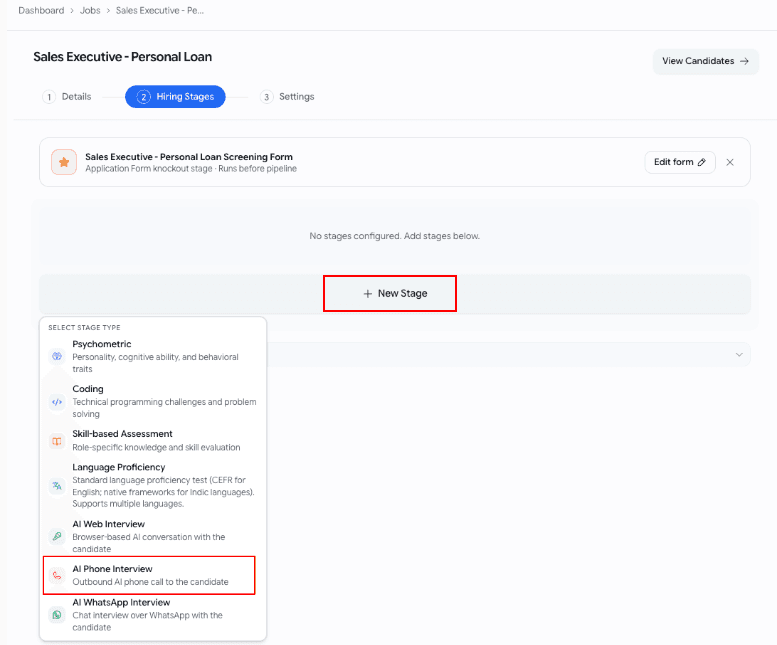
- Choose AI Phone Interview as the delivery method.
- Give the interview a title.
- Write the Intro message and closing remarks, then add your questions and evaluation criteria.
- Pick the languages and the interviewer voice.
- Save the assessment.
Languages and voice
Phone calls always open in English. You pick one interviewer voice, and it carries across every language the candidate switches into, so a candidate who answers in Hindi keeps the same voice throughout.
Phone settings
Choosing AI Phone Interview adds a Phone Settings panel to the builder.
WhatsApp confirmation
Confirm via WhatsApp before calling is off by default. Turn it on and the candidate gets a Yes/No message on WhatsApp first, and Goodfit only dials once they say yes. Use it when you want candidates to opt in before their phone rings.
Call window
Set the start and end time, the timezone, and which days of the week calls may go out. The default is 9:00 to 19:00 IST, Monday to Friday.
Calls that fall outside the window are not dropped, they are queued for the next available slot.
No answer or busy
Choose how many times to retry and how long to wait between attempts. Once every retry is used up, the attempt is marked as failed.
When a candidate says "not now"
The interviewer asks when would be a good time to call back, reads the answer, and confirms it with the candidate. You control two things: what to do when no clear time is given, and how many callbacks a single candidate can get.
Callbacks respect your call window. A time outside it snaps to the nearest allowed slot.
When a candidate disconnects
Three cases, each configured separately:
- During the intro, under 30 seconds, is treated as a "not now" and follows your callback settings.
- Under halfway through the questions, you choose between saving their progress and retrying once, or marking the attempt incomplete. A retry picks up where they left off.
- Halfway or further, you can also choose to evaluate the answers they did give.
Use it in a hiring flow
Attach the saved assessment to a stage in your hiring flow, check that every candidate has a valid phone number, then move candidates into that stage. Goodfit handles the calling from there, following the phone settings you configured.
Getting better completion rates
- Keep the Intro message short. It is the candidate's first impression, often mid-commute.
- Set calling hours that match when your candidates can actually talk.
- Turn on WhatsApp confirmation when you want explicit consent before dialling.
- Add more than one language when you are hiring across mixed-language regions.
- Check phone numbers before you move candidates into the stage.
Troubleshooting
The candidate never got a call. Check that the number is valid, that the assessment is set to AI Phone Interview rather than an AI Video Interview, that the current time falls inside your call window, and that at least one weekday is selected.
Calls are not going out straight away. That is the call window doing its job. Anything outside it is queued for the next slot.
The candidate should confirm before being called. Turn on Confirm via WhatsApp before calling in Phone Settings.
When to contact support
Get in touch if calls are not going out despite correct settings, candidates are not receiving the WhatsApp confirmation, or you would like help choosing retry settings for a large hiring drive.
Please include the job name, the assessment name, the candidate's name and phone number, and roughly when you expected the call.
Related articles: