Organization settings
Team & Permissions
Invite teammates into your organization and choose what each one can see and change.
Everyone who works on hiring with you can have their own login. What they can see and change depends on the role you pick when you invite them.
Go to Settings → Organization Members, then click Invite Member.
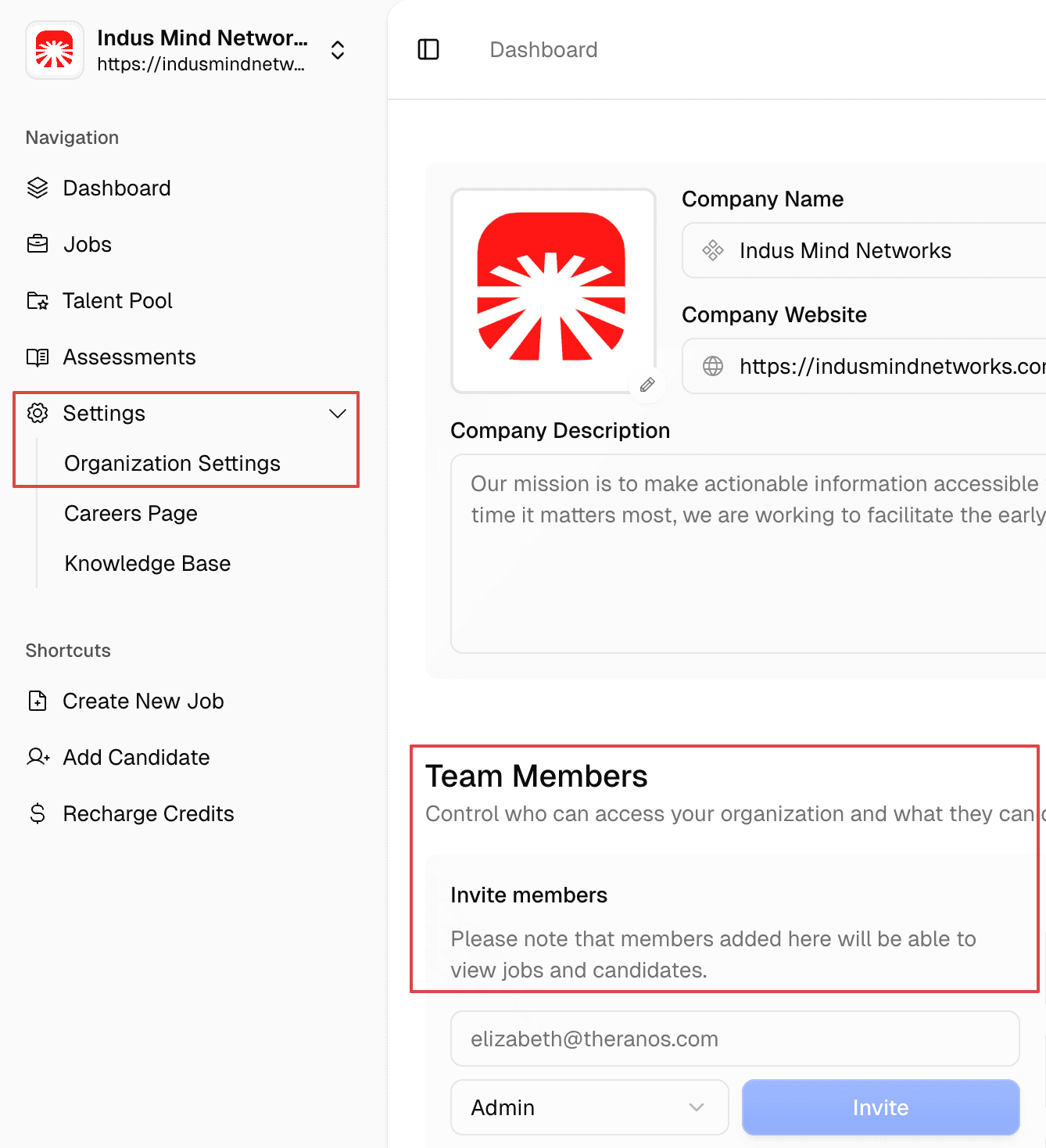
The five roles
- Owner — the person who created the organization. Full access to everything, including API keys. There is one owner at a time, and the role is passed on with Transfer Ownership rather than handed out from the invite dialog.
- Admin — full access to every job, every candidate and every settings page. Pick this for anyone who runs hiring end to end.
- Recruiter — assigned to specific jobs at the moment you invite them. On those jobs they can edit the job, manage the board and invite candidates. They cannot open settings, and they cannot see jobs they were not assigned to.
- Recruitment Vendor — an external agency. They can see your open roles and submit candidates to any of them, but they only ever see the candidates their own agency submitted, and they cannot move anyone through your pipeline.
- Member — can view every job and candidate, and leave a review on a job, but cannot change anything. Pick this for hiring managers and interviewers who need visibility without edit access.
Changing a role later
Open the menu on any row of the Organization Members page to change someone's role, including converting a member or a vendor into a recruiter.
Only owners and admins can invite people or change roles. Transferring ownership is the owner's alone.
Related articles: