Release notes
September Week 4
Questions grouped by skill with a score for each, a different mix of questions for every candidate in both assessments and AI interviews, Bash added to coding assessments, and an automation builder that asks when your sentence leaves something open
Assessments
Group questions by skill, and ask every candidate a different mix
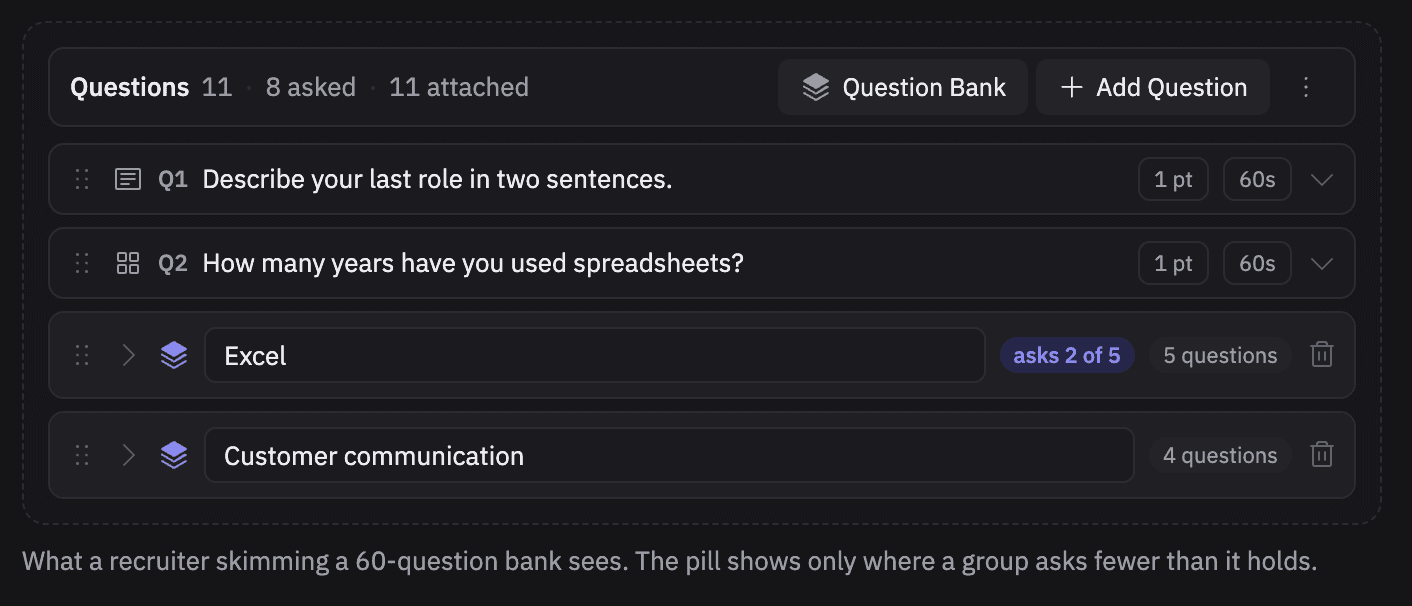
One total score doesn't tell you whether someone is strong at Excel and weak at customer communication. And when hundreds of people sit the same test, the questions get shared.
In skill assessments
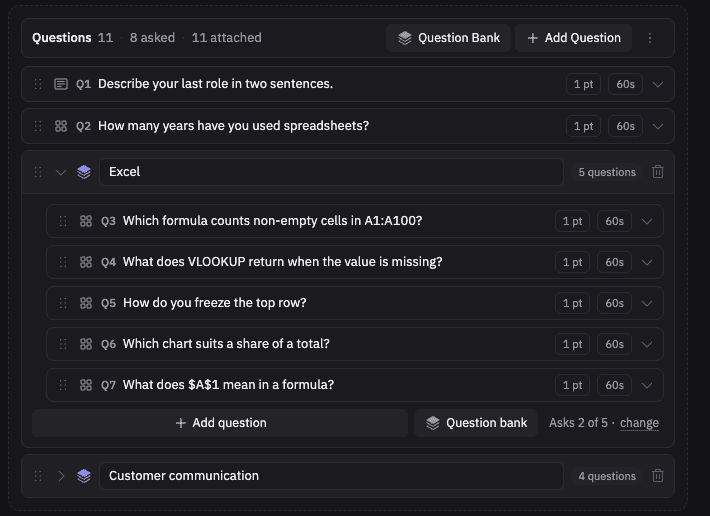
- Put questions into skills. In the question list, open the menu and pick Add skill head. Name it (say,
Excel) and add questions inside it, straight from Add question or the Question bank. - Ask a few from each skill. Click
Asks all 5 · changeat the bottom of a skill and set how many to ask. Every candidate gets a different mix, so answers are harder to pass around. - The report scores each skill separately. A Skills section at the top of the report shows points and a percentage per skill, then the questions under each one.
In AI interviews
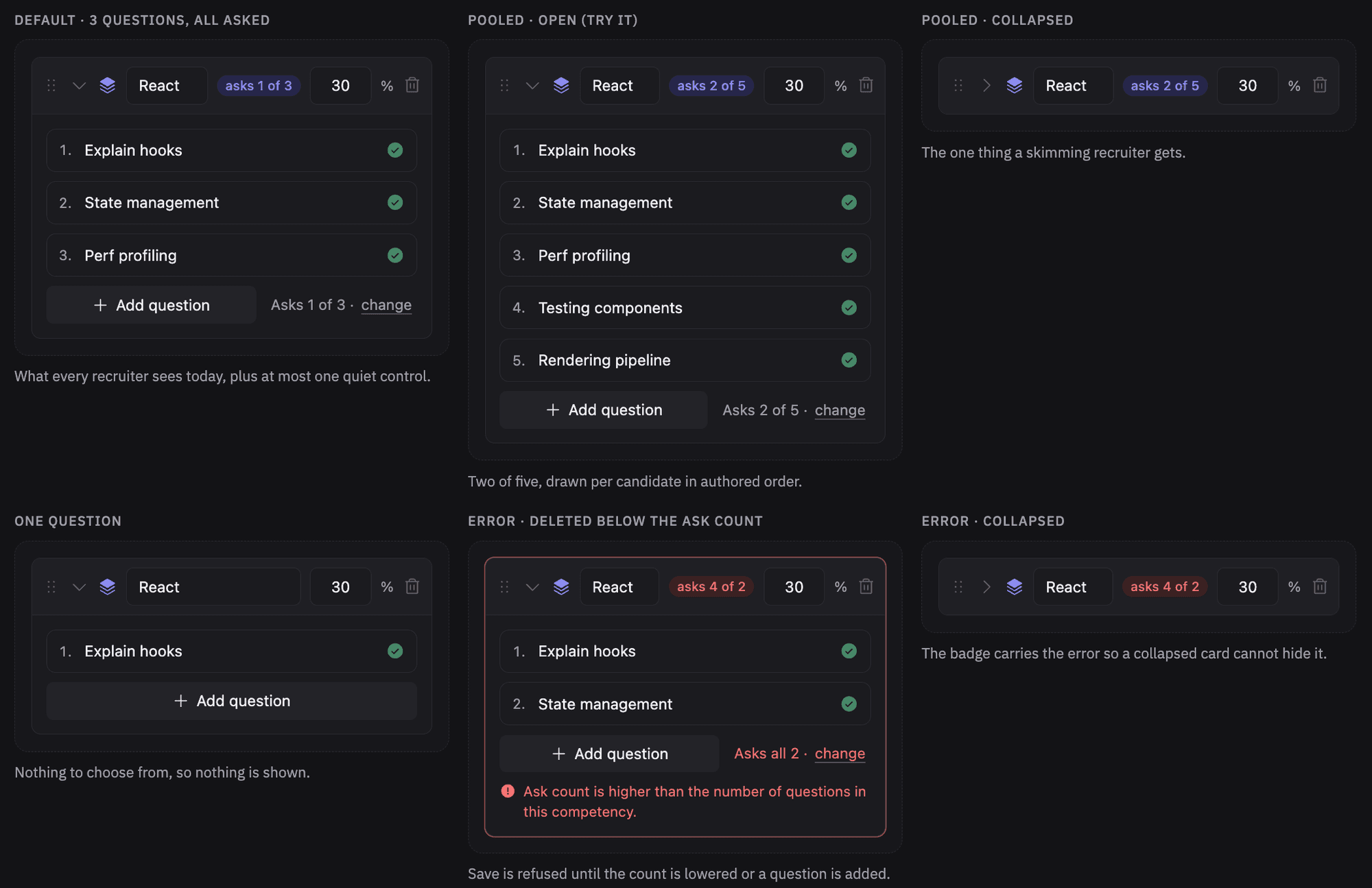
- Set it per competency. In the interview builder, click
Asks all 5 · changeunder a competency and pick how many to ask.
Assessments
Coding assessments now support Bash
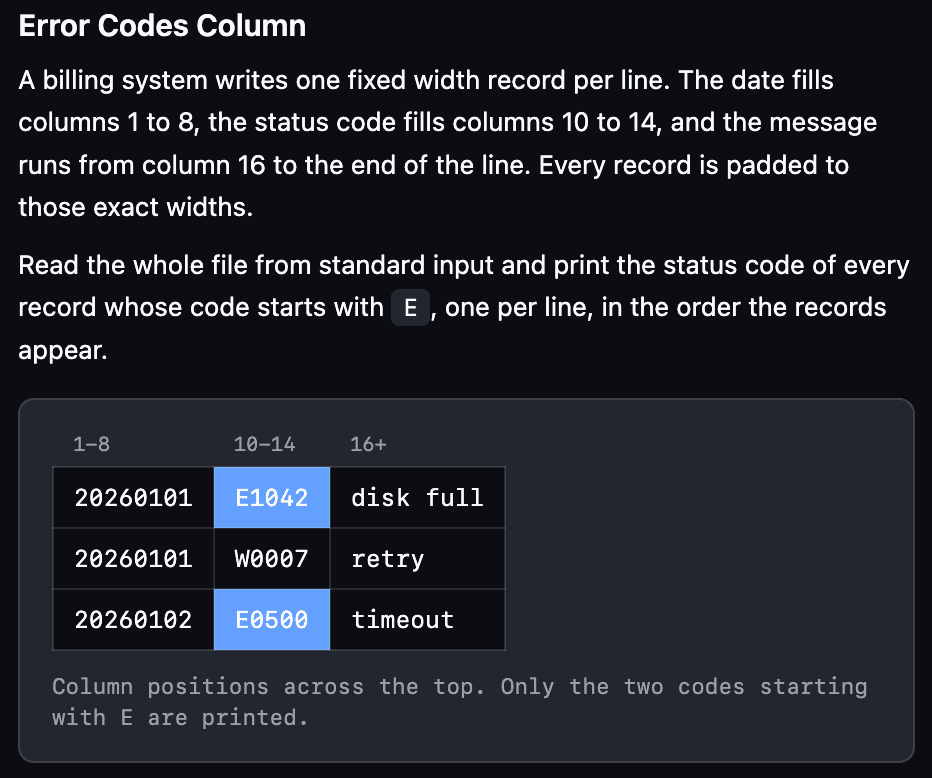
Hiring someone for a Systems Engineer role? Test them on the kind of work they actually do: reading logs, pulling out columns, counting and sorting text.
- New Bash questions in the bank. 50 of them, ready to drop into an assessment.
Automations
The automation builder asks instead of guessing
Describe a rule in a sentence and the AI fills in the trigger, the conditions and the actions. When your sentence leaves something open, it now asks you instead of picking for you.
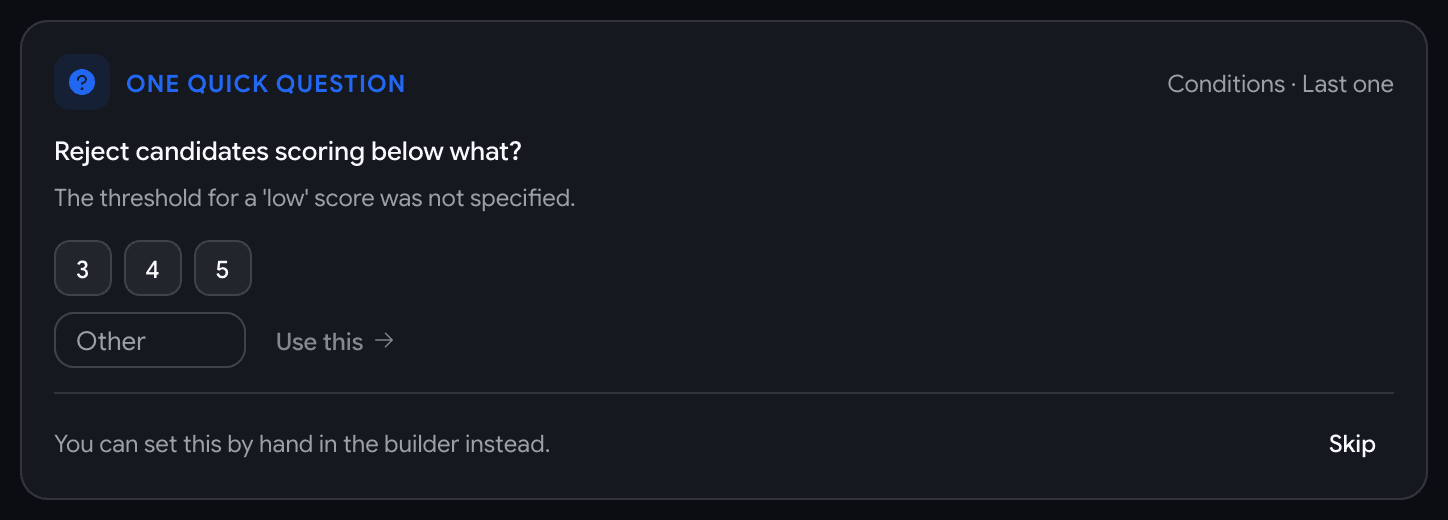
- One question at a time, with the answers ready to click. Say "reject anyone whose AI interview score is too low" and it asks where the line is, offering
3,4and5. Pick one and the rule updates in place. - Each question points at the card it will change. Trigger, Conditions or Actions lights up while you answer, so you can see where your answer lands.
- It fills its own gaps too. If the rule needs a stage, an email template or a number of days and your sentence didn't say, it offers the real ones from your pipeline instead of leaving you an empty dropdown.
Othertakes any number you want. SkipandSkip allare always there. The questions are a shortcut, never a gate, and everything stays editable by hand below.
Rules that reject a candidate ask you first
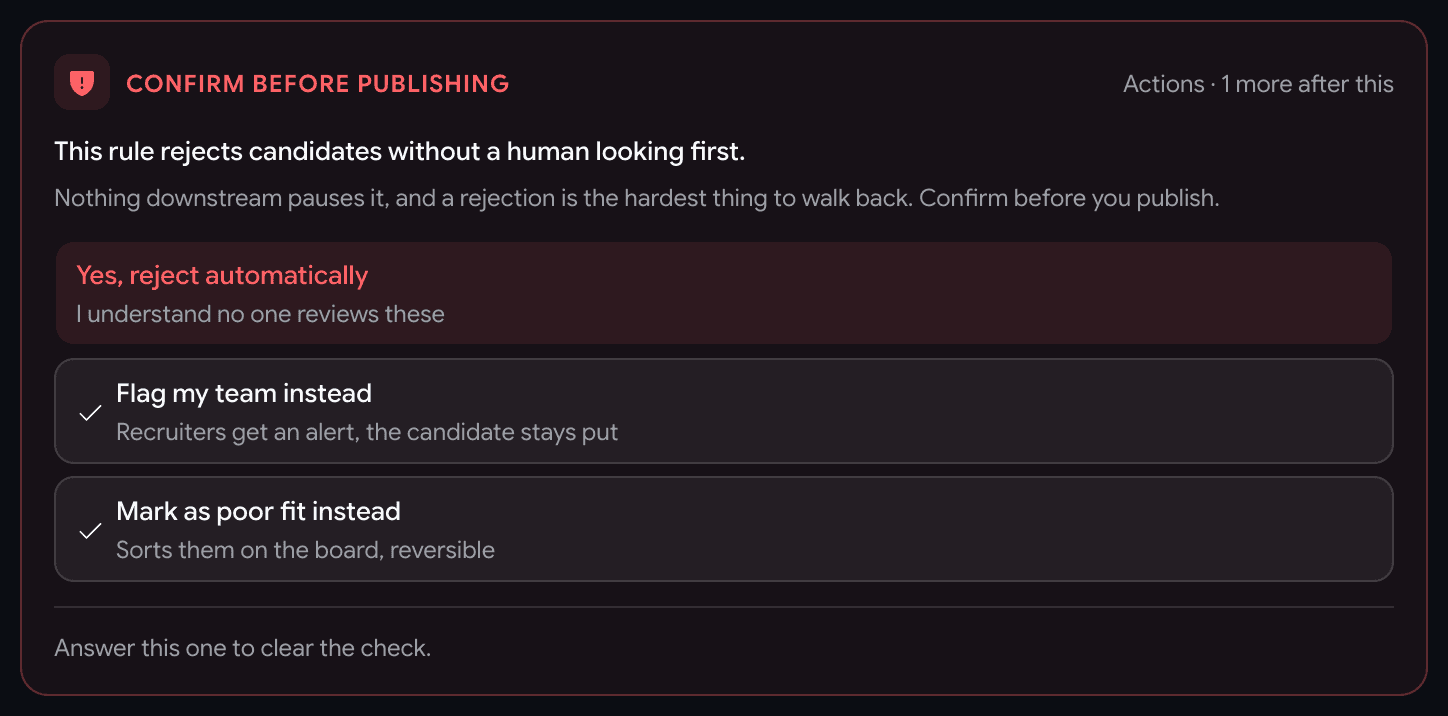
- Anything that rejects, or marks someone rejected, shows
Confirm before publishingand says plainly:This rule rejects candidates without a human looking first. - Two safer answers are one click away.
Flag my team insteadswaps the rejection for an alert to the recruiters on that job.Mark as poor fit insteadsorts the candidate on the board without closing them out. Keeping the rejection is something you choose, not something you drift into.
It tells you when a rule cannot do something
- Ask for something automations don't do yet, such as deleting or archiving records, and you get
That isn't something a rule can do yetwith the reason. Nothing is filled in below, so you can describe a different rule or build one by hand.